 Unlock
Page: 1
/
11
Total 51 questions
Master Adobe Workfront Fusion Developer Professional with AD0-E902 Prep
Question 1
A CSV export from another system provides columns of information about Purchase Orders. The graphic below includes information from each column and an example of data from one row:
The customer wants this information in the title of their Workfront projects in the following order:
1.PO#
2. Name
3. PO Fulfillment Date
4. If a discount was given, include the Discount% and the Approver's Last Name.
Ex. 2837 - Compendium-Premium Running Shoes - 21 /02/16 -15% Discount - UserLast Which expression below represents the project name that the customer wants?
A.

B.

C.

D.

Correct : A
Understanding the Requirement:
The project name in Workfront must include:
Purchase Order Number (PO#).
Name of the product.
PO Fulfillment Date (formatted as YY/MM/DD).
If a discount is provided, append the discount percentage and the approver's last name in the format: 15% Discount - UserLast.
Example Output:
sql
Copy
2837 - Compendium-Premium Running Shoes - 21/02/16 - 15% Discount - UserLast
Why Option A is Correct:
The expression in Option A achieves the desired result step-by-step:
3.PO#: Includes the PO number.
3.Name: Appends the name of the product.
formatDate(3.PO Fulfillment Date, YY/MM/DD): Formats the PO Fulfillment Date in the desired YY/MM/DD format.
if(3.Discount Provided? = 'Yes'; '- ' + 3.Discount % + ' Discount - ' + 3.Approver Last Name):
Uses the if function to check if a discount was provided.
If 'Yes,' it appends the discount percentage (3.Discount %) and approver's last name (3.Approver Last Name) with the required format.
Why the Other Options are Incorrect:
Option B:
The expression is incorrect because it places if(3.Discount Provided?...) directly after PO Fulfillment Date without using formatDate for date formatting. This results in an unformatted date.
Option C:
Uses parseDate instead of formatDate, which is incorrect in this context. parseDate is used to interpret strings as dates, not to format dates for output.
Option D:
The expression does not include any conditional logic for checking if a discount is provided. It simply appends Discount - Approver Last Name regardless of whether a discount was given.
Steps to Use the Expression in Workfront Fusion:
Place the expression in the module that defines the project title in Workfront.
Map the fields (PO#, Name, PO Fulfillment Date, etc.) to the respective columns from the CSV data.
Test the scenario to ensure the output matches the desired format.
Final Expression (Option A):
3.PO# + ' - ' + 3.Name + ' - ' + formatDate(3.PO Fulfillment Date; YY/MM/DD) + if(3.Discount Provided? = 'Yes'; ' - ' + 3.Discount % + ' Discount - ' + 3.Approver Last Name)
Reference and Supporting Documentation:
Adobe Workfront Fusion Functions Documentation
Workfront Community: Handling Conditional Logic and Date Formatting
Start a Discussions
Submit Your Answer:
Question 2
Refer to the exhibit.
In this image,
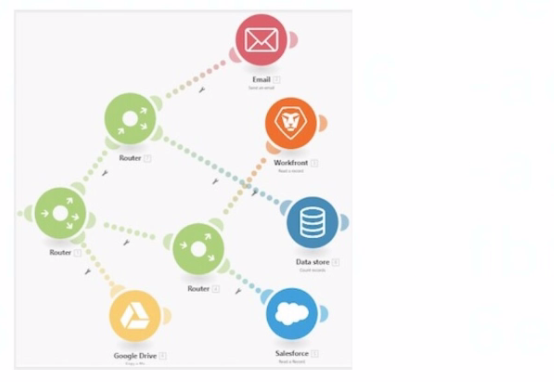
all items are displayed in a position that does not hide their execution sequence. In what order do the modules execute?
Correct : D
Understanding the Diagram:
The image depicts a Workfront Fusion scenario using Routers to split and manage multiple execution paths.
Fusion executes modules in a left-to-right and top-to-bottom sequence along each path. Routers direct the flow to downstream modules.
Determining the Execution Sequence:
Path 1:
The first path begins with Google Drive. The Router branches out, directing execution sequentially to other modules.
Path 2:
The second path starts with Email and continues downwards through the remaining modules.
Order Within Branches:
After passing through a Router, each branch completes its sequence of modules before moving to the next Router.
Why Option D is Correct:
Execution begins from the leftmost module (Google Drive) and flows rightward. The sequence is as follows:
Google Drive
Data Store
Workfront
Salesforce
This matches the visual layout and Fusion's execution rules for scenarios with Routers.
Why the Other Options are Incorrect:
Option A ('Google Drive > Email > Workfront > Data Store > Salesforce'):
Incorrect because Workfront does not precede Data Store in the execution order.
Option B ('Email > Workfront > Data Store > Salesforce > Google Drive'):
Incorrect because execution begins with Google Drive, not Email.
Option C ('Email > Data Store > Workfront > Salesforce'):
Incorrect because it excludes Google Drive as the starting point and places modules out of sequence.
Execution Rules in Workfront Fusion:
Fusion executes modules in the order they appear visually, starting from left to right and top to bottom within each branch.
Routers split the execution into separate branches, which are completed sequentially.
Reference and Supporting Documentation:
Adobe Workfront Fusion: Execution Flow Rules
Workfront Community: Understanding Router and Module Execution
The correct execution sequence is Google Drive > Email > Data Store > Workfront > Salesforce, ensuring all paths are processed as per the scenario's layout.
Start a Discussions
Submit Your Answer:
Question 3
A solution requested for a use case requires that the scenario is initiated with project updates.
Which Workfront app module will start the scenario immediately?
Correct : A
Understanding the Questio n:
The scenario must begin as soon as a project update occurs in Adobe Workfront.
The correct Workfront module should continuously monitor for specific changes (in this case, project updates) and trigger the scenario immediately.
Why Option A ('Watch Events') is Correct:
Watch Events Module: This module in Adobe Workfront Fusion is specifically designed to monitor events, such as updates to projects, tasks, or issues, and trigger scenarios as soon as those events occur.
Real-Time Triggering: The 'Watch Events' module listens to the Workfront event stream and ensures the scenario starts immediately upon detecting relevant updates.
Example Use Case: Monitoring updates to a project's status, such as changes in 'Completion' or 'Progress,' to trigger notifications or integrations with other systems.
Why the Other Options are Incorrect:
Option B ('Watch Record'): This module monitors specific Workfront records (e.g., projects, tasks, issues) for new additions or modifications, but it does not initiate scenarios immediately when updates occur. It works better for periodic checks rather than real-time events.
Option C ('Watch Field'): This module monitors changes to specific fields within a Workfront object, but it is not designed for broader event monitoring like project updates. It is more suited for field-specific tracking.
Option D ('Search'): This module performs queries to find specific data in Workfront (e.g., searching for projects based on criteria), but it is not an event-driven module and does not automatically trigger scenarios.
Steps to Configure the Watch Events Module in Workfront Fusion:
In the Fusion scenario editor, add the Watch Events module as the first step in your scenario.
Configure the module:
Select Workfront Connection: Choose the authorized Workfront account.
Event Object: Specify the object type (e.g., Project, Task, Issue) to monitor.
Event Type: Select the type of event to watch, such as 'Update' or 'Change.'
Save and activate the scenario.
How This Solves the Problem:
Using the Watch Events module ensures the scenario is event-driven and starts automatically when the desired project update occurs. This approach is both efficient and timely, meeting the requirement for immediate initiation.
Reference and Supporting Documentation:
Adobe Workfront Fusion Official Documentation: Watch Events Module
Workfront Community Forum: Use Cases for Watch Events
Start a Discussions
Submit Your Answer:
Question 4
In a Fusion scenario, a new project in Workfront will trigger the creation of a new project in ServiceNow. The name of the project in ServiceNow will be constructed in the following format:
Two Digit Year - Reference Number - Project Name
Which expression will generate the correct string?
Correct : C
Understanding the Requirement:
The desired output format for the project name in ServiceNow is: Two-Digit Year - Reference Number - Project Name
This requires dynamically constructing a string by combining:
The current year in a two-digit format.
The referenceNumber (a variable or input).
The name (a variable or input, likely the project name).
Why Option C is Correct:
The concat function combines multiple strings into a single string.
Expression:
concat(formatDate(now;YY), ' - ', referenceNumber, ' - ', name)
This ensures proper formatting with hyphens and spaces between the elements.
Breaking Down the Components:
formatDate(now;YY): Retrieves the current year in a two-digit format (e.g., '23' for 2023).
' - ': Adds the required separator.
referenceNumber: Dynamically adds the reference number.
name: Dynamically adds the project name.
Why the Other Options are Incorrect:
Option A ('formatDate(now;YY) - referenceNumber - name'):
This is not valid because it does not explicitly use a string concatenation function.
Option B ('join(formatDate(now;YY) - referenceNumber - name'):
The join function is used for concatenating elements of an array, not individual strings. Since the inputs are not in an array, this function will not work.
How This Solves the Problem:
The concat function correctly constructs the string with the desired format, dynamically generating the project name for ServiceNow based on the given inputs.
Reference and Supporting Documentation:
Adobe Workfront Fusion Functions Documentation
Workfront Community: Using the concat Function
Start a Discussions
Submit Your Answer:
Question 5
A Fusion Developer receives frequent notifications that a specific Scenario has been stopped. Upon investigation, the developer notes that there is nothing wrong with the data or process in the scenario, but that the error always occurs on a specific module that calls a third-party system. The error recorded is consistently a service unavailable error, particularly during times of high network traffic to the target system.
Which action should the Fusion Developer take to reduce the number of times the scenario is automatically stopped by Fusion?
Correct : A
In this scenario, the error consistently arises due to the unavailability of a third-party service during high traffic times. This is a temporary issue and does not indicate a problem with the data or process. The recommended approach in such cases is to configure the scenario to retry failed executions:
Update Scenario Settings:
In Workfront Fusion, you can configure scenarios to automatically retry a failed execution.
This option ensures that temporary issues, like service unavailability, are retried after a delay, reducing the chances of the scenario being stopped permanently.
This is particularly useful when dealing with network traffic spikes or third-party API throttling.
Why Not Other Options?
B . Update the Module settings to automatically ignore failed executions: Ignoring failed executions would cause incomplete or incorrect data to flow through the scenario, leading to potential downstream issues.
C . Add an error handler to the Module and select a Break directive: While error handlers are useful, the Break directive stops the scenario from processing further, which is not ideal for a temporary issue.
D . Add an additional route after the failing module with a repeater: Adding a repeater increases complexity and is unnecessary when the retry option is already available in scenario settings.
Adobe Workfront Fusion Documentation: Scenario Settings and Error Handling
Experience League Community: Handling API Rate Limits and Errors in Workfront Fusion
Start a Discussions
Submit Your Answer:
Want to Unlock Everything for
Adobe AD0-E902 Exam?
Adobe AD0-E902 Exam?
By upgrading to Premium Access, you’ll instantly unlock:
Unlock 51 Premium Questions
- Exam Name: Adobe Workfront Fusion Developer Professional
- Exam Code: AD0-E902
- Last Update: 15-Aug-2026
- Formats: PDF, Web-based,
Desktop Practice - 24/7 Customer Support
 Price: $59 (PDF Format)